First off, lets get some test files:
for i in foo bar cat dog ; do echo $i > $i ; done;
This creates 4 files named foo, bar, cat and dog. Each file has a single line that contains the file’s own name.
Let’s open the first file:
vim foo
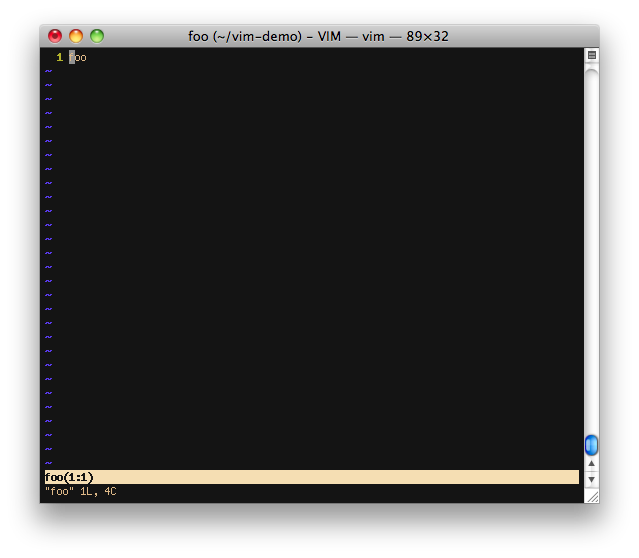
This would be the familiar vim with one file open view. Now to open a new split and open the bar file inside it:
:sp bar
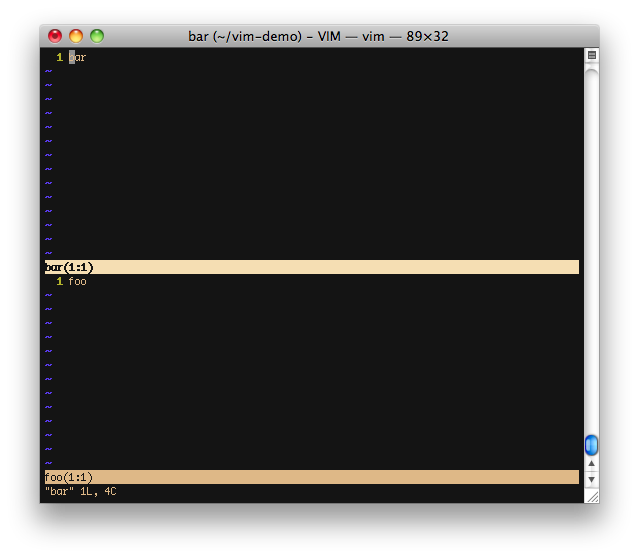
Focus is in the new split initially. To move between splits first press Ctrl-w (I remember this by Control Window, I’m not sure what the official mnemonic is) Then press a directional key to move the cursor to the split you’re interested in. Directional key could be the arrows or my preferred home row method.
We can split again and open the cat file:
:sp cat
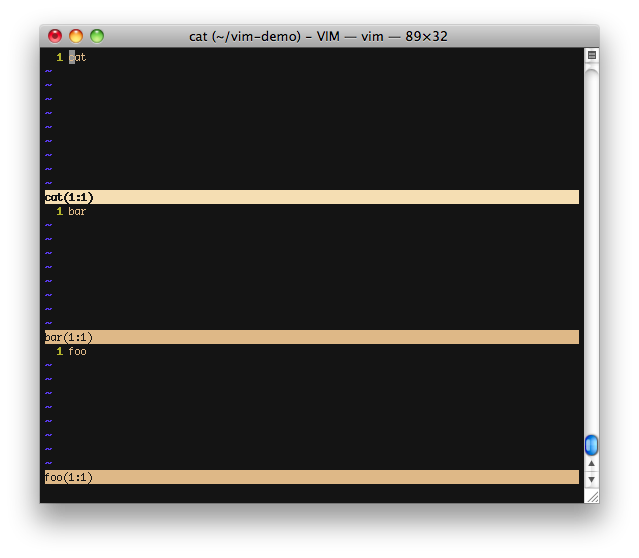
By now you may have noticed the every time you open new split all splits get an equal amount of screen real estate. The size of the current split can be adjusted by using Ctrl-w + and Ctl-w - (+ increases the split size by one line, - reduces the split size by one line) If the idea of bumping the size of the split one line at a time doesn’t sit well with you, prefix +/- with a multiplier. For example to increase our current split (which is the cat split) by 5 lines run the following:
Ctrl-w 5+<
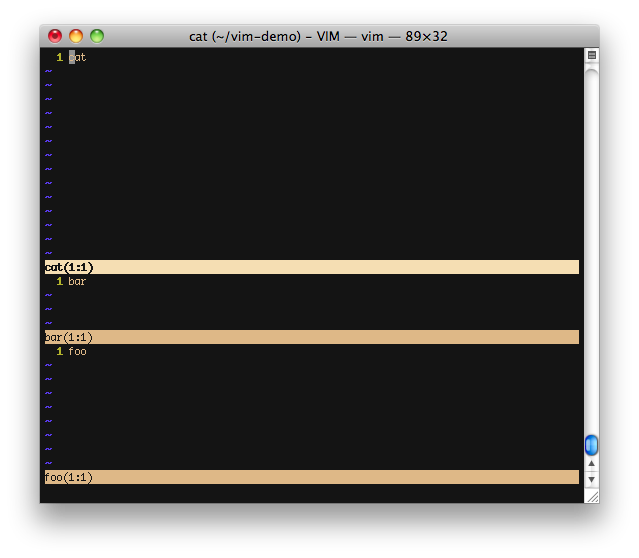
To quickly “maximize” the current split:
Ctrl-w _
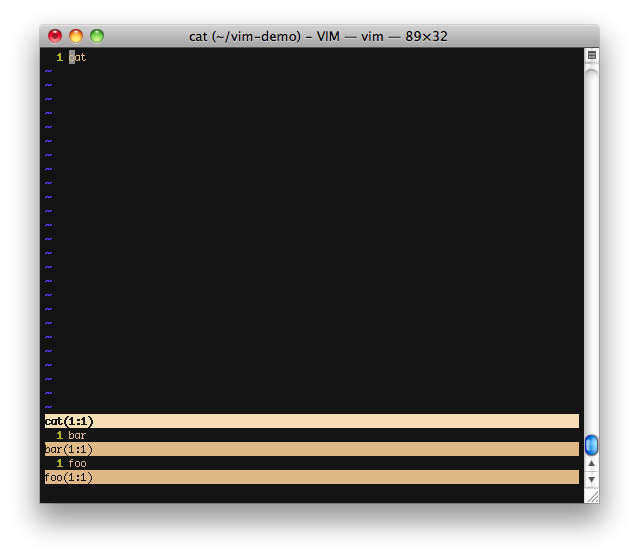
And to return to equalized splits:
Ctrl-w =
So far we have only been working with horizontal splits. Vim also supports vertical splits. To split the current split again, only vertically (and at the same time open the file named “dog”) run:
:vsp dog
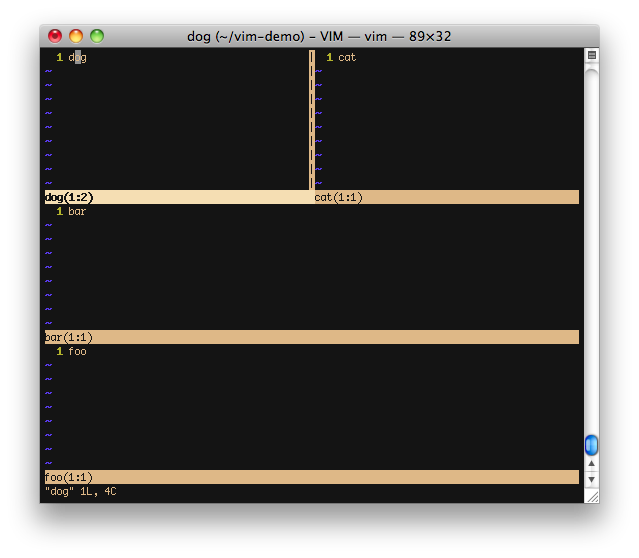
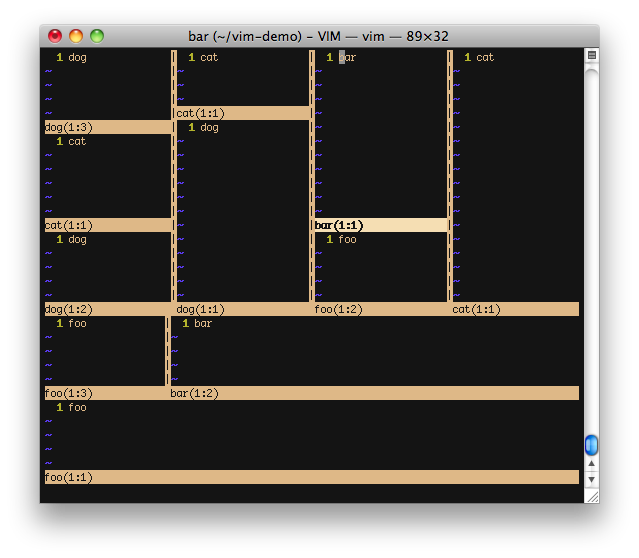
Of course you can keep splitting until your head hurts. Vim even allows you to split the same file multiple times and it will automatically keep the contents in sync. This is very handy for referencing one section of a file while editing another.
Split related commands:
| Command | Action |
|---|---|
| :sp filename | Open filename in horizontal split |
| :vsp filename | Open filename in vertical split |
| Ctrl-w h Ctrl-w ← | Shift focus to split on left of current |
| Ctrl-w l Ctrl-w → | Shift focus to split on right of current |
| Ctrl-w j Ctrl-w ↓ | Shift focus to split below the current |
| Ctrl-w k Ctrl-w ↑ | Shift focus to split above the current |
| Ctrl-w n+ | Increase size of current split by n lines |
| Ctrl-w n- | Decrease size of current split by n lines |